


Your daily workflow.
In single workspace.
Invoices, documents awaiting approval and company agenda. See what's waiting in your defined workspace and proceed directly to the relevant process.
Accounting and reporting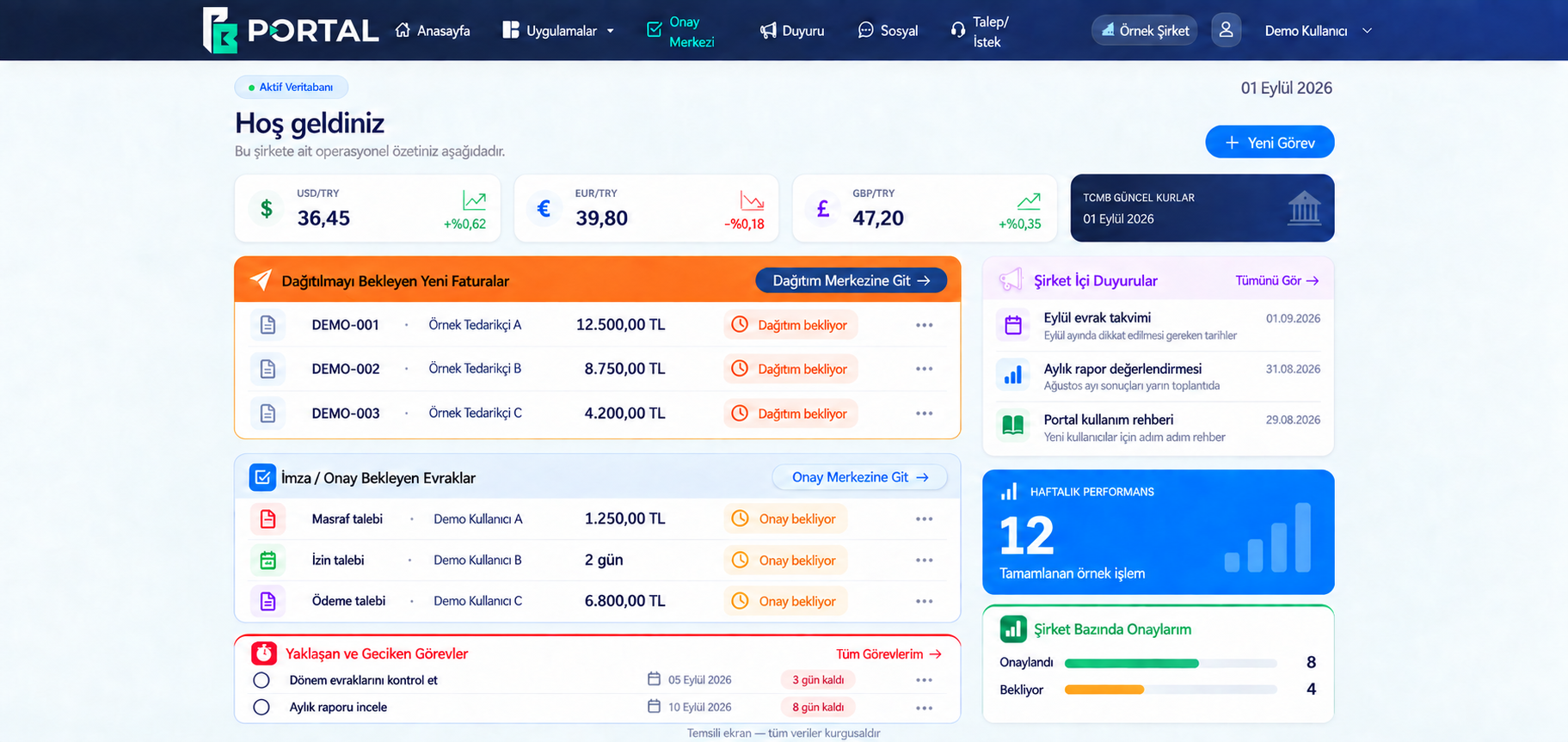
It is not a separate table, but a reflection of your accounting.
Financial reports presented on the portal are based on your company's official accounting records. You track your income, expenses and financial situation with information based on the same record order, not through separate tables prepared independently of accounting.
Transmission of a document, waiting for approval and accounting are different stages. The portal allows you to follow the daily workflow and helps you evaluate reports within the framework of the relevant period and registration status.
Explore the portal screens
Choose an area to explore its screens and short descriptions.
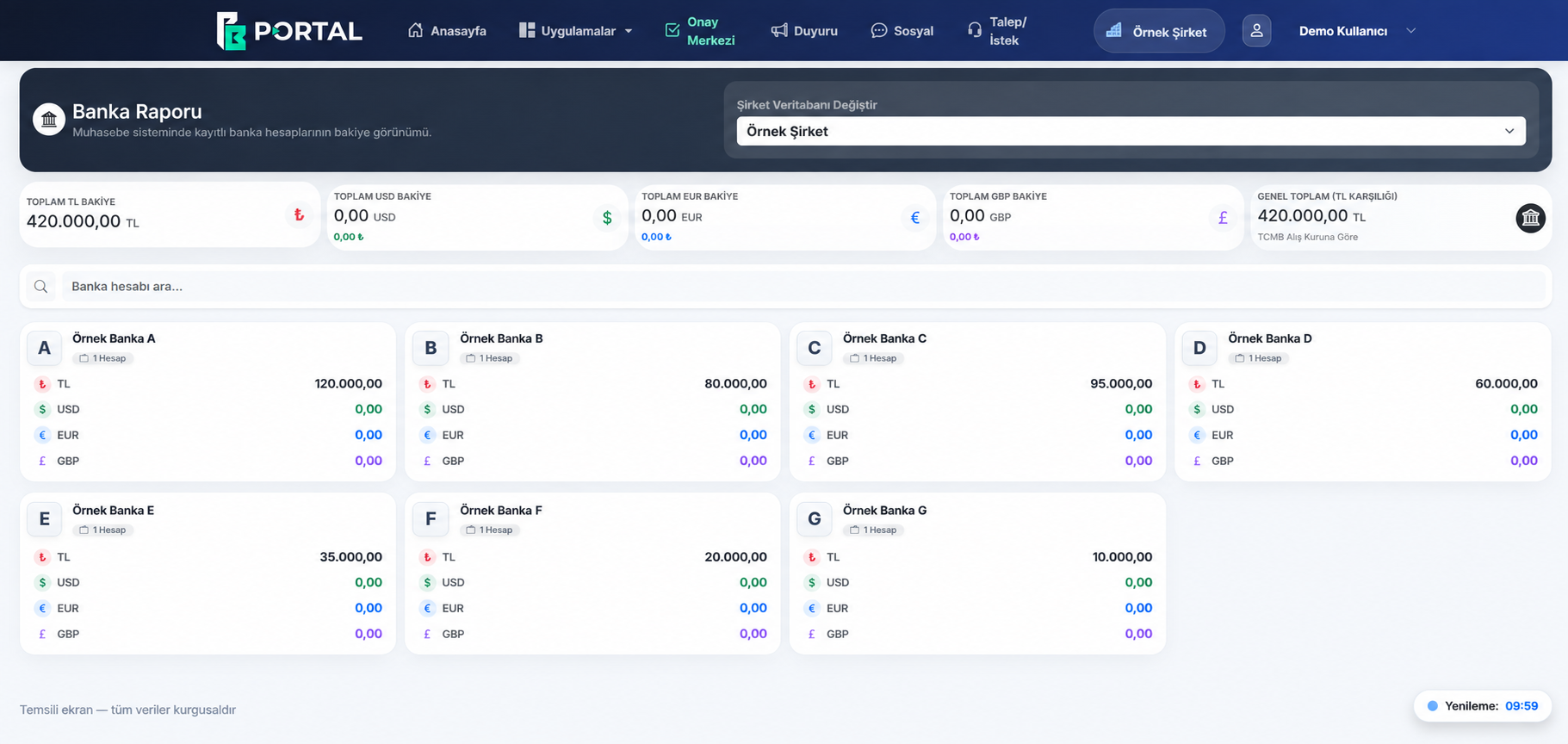
Bank balances see together.
Bank Report brings together bank accounts recorded in the selected company's accounting system. You can follow bank-based balances and totals by currency in the same view.
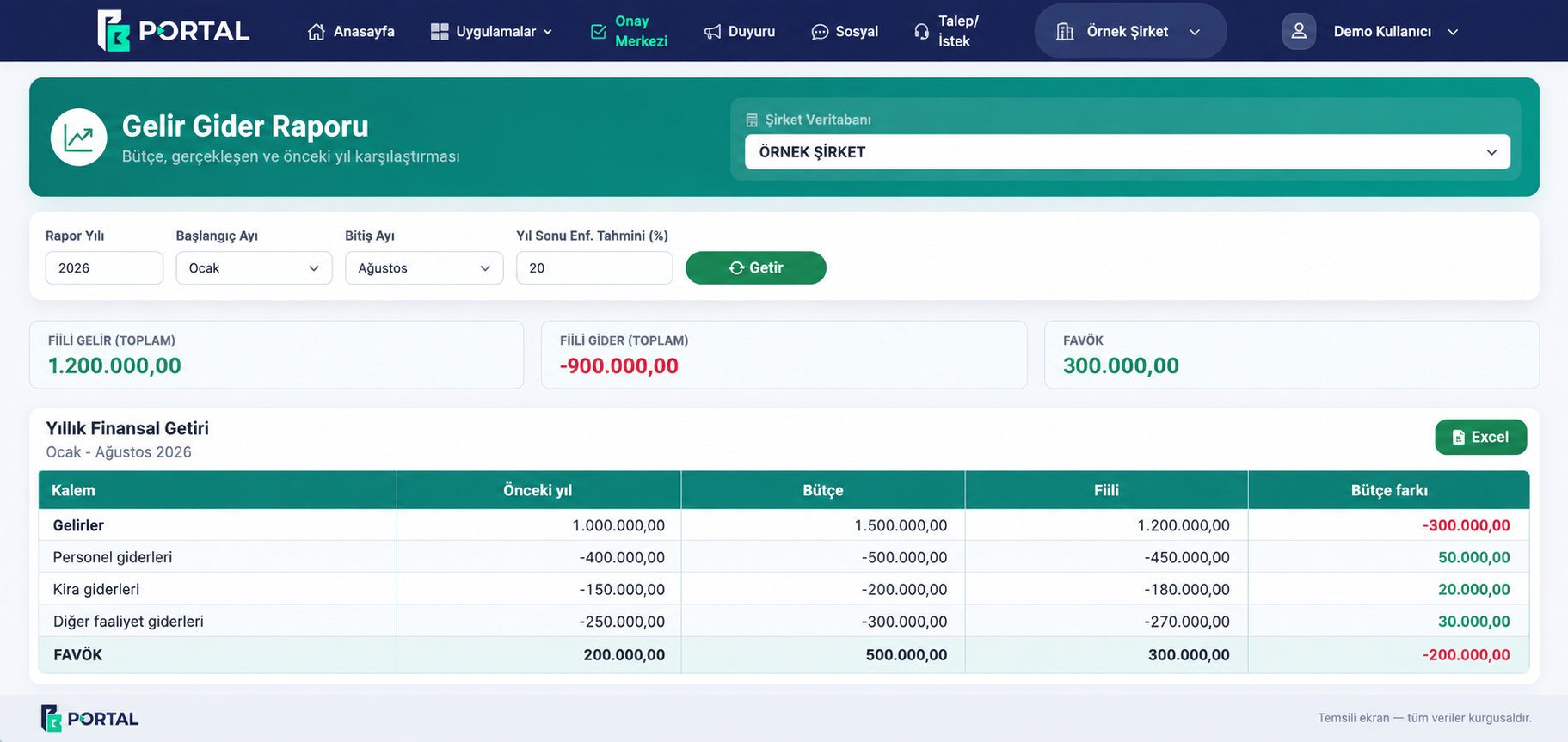
What happens within your budget? Compare in the same table.
Budget – Actual Income and Expense Report compares the budget you prepared with actual income and expenses. By examining the period and previous year data together, you can see deviations from the targets and follow your financial performance through current records.
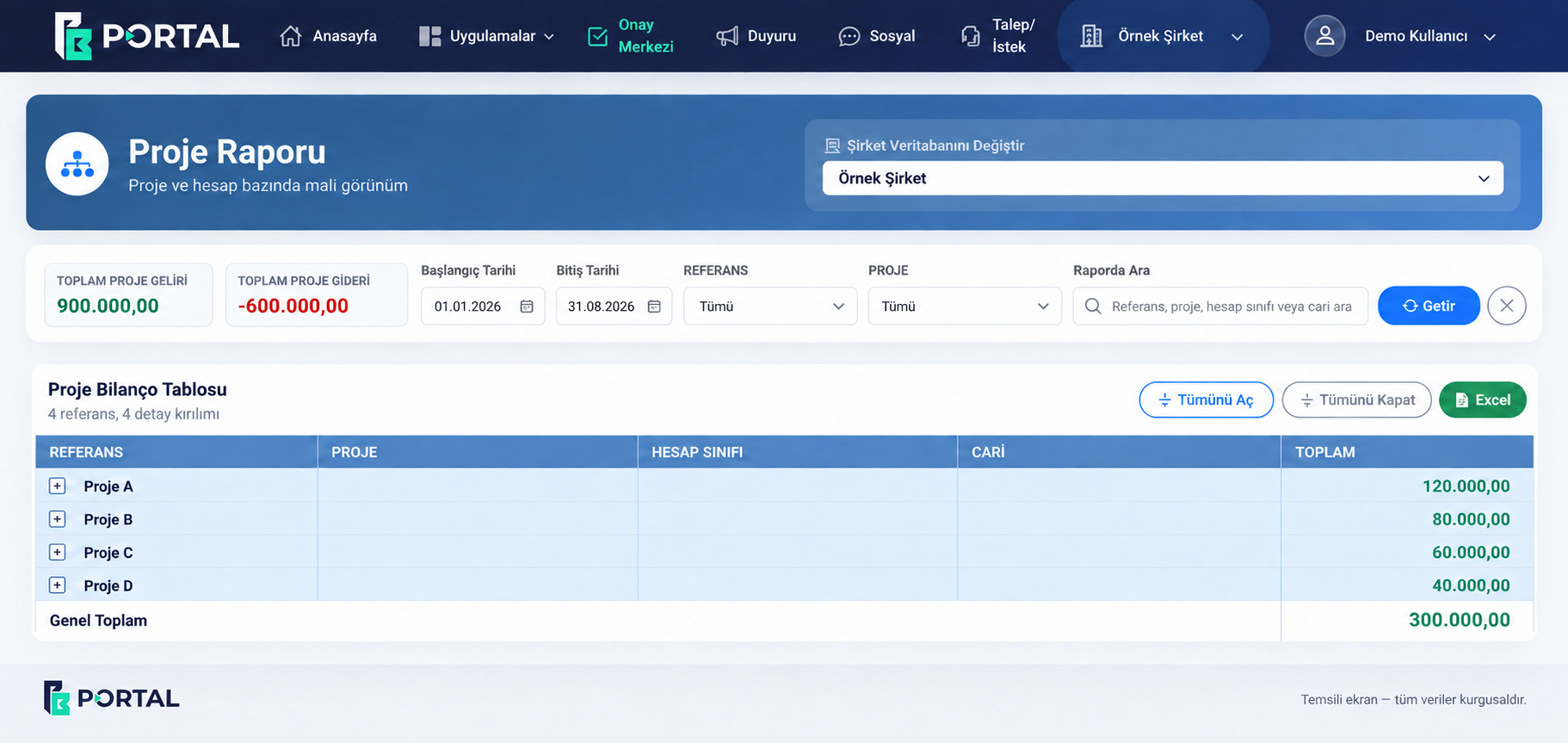
Each project See the financial result of .
Evaluate the orders and transactions followed on a project basis together with the financial reports of the relevant project. You can track the contribution of each project to your company's financial situation by examining revenues, expenses and account movements through the project balance sheet and income statement.
Your current accounts. With its balance, with its movement.
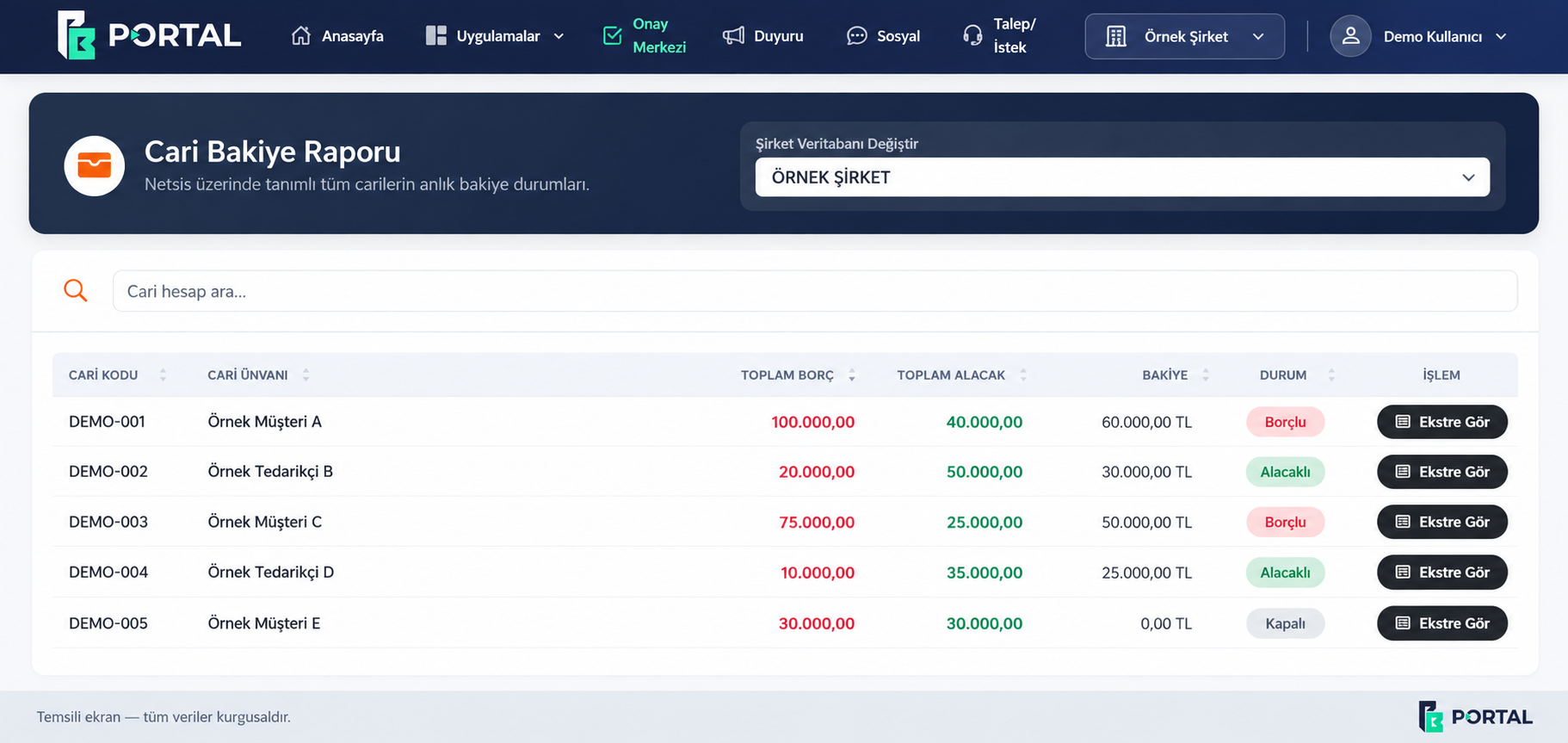
Current Balance Report brings together your company's customer and supplier accounts with up-to-date debit, credit and balance information. You can search for the relevant account; You can review your movements in detail on your TL or foreign currency statement.
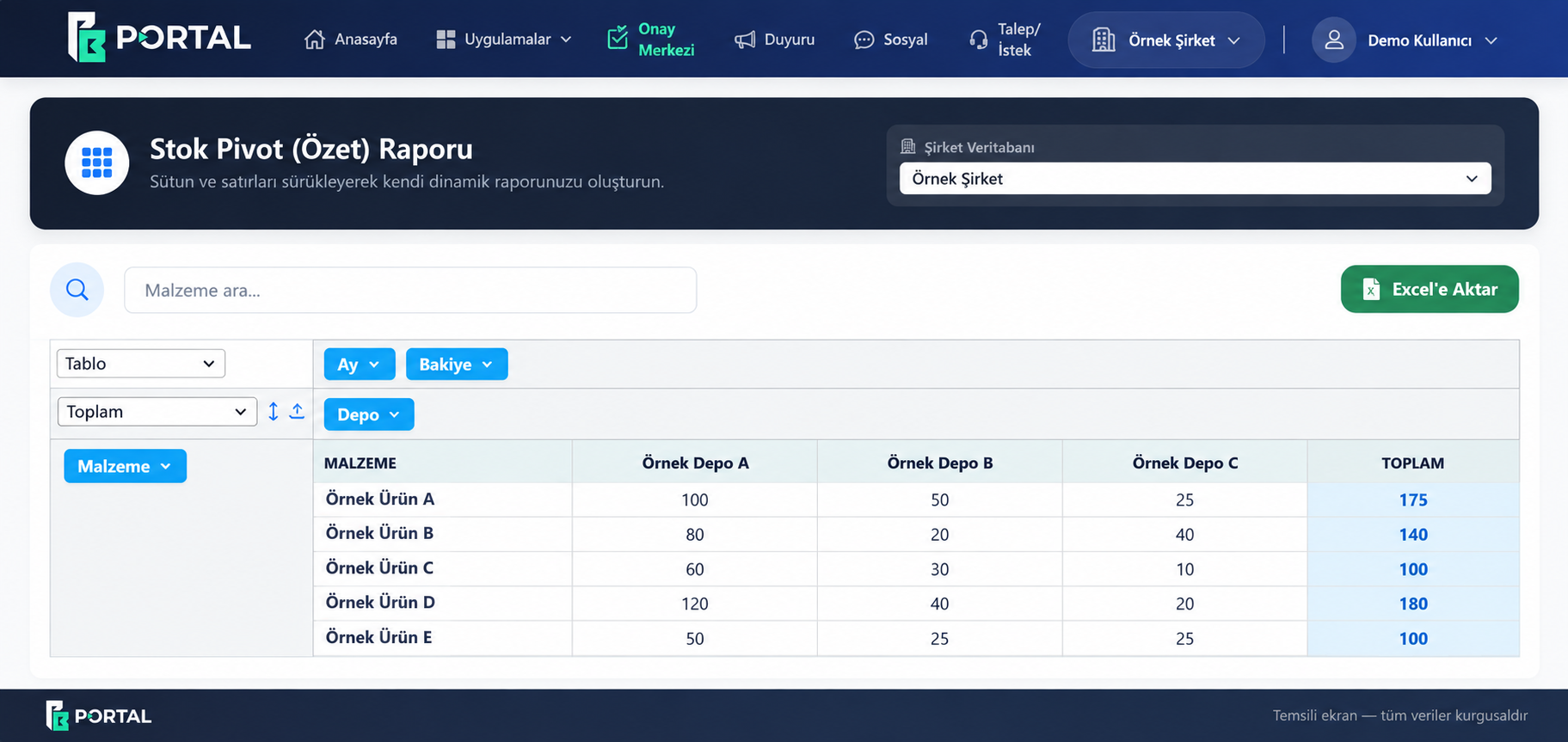
Your stocks Monitor by warehouse.
Follow your company's stock information through current records reflected in the system. You can organize material, warehouse and period breakdowns with the Stock Pivot Report; You can create a summary that suits your needs and export the results to Excel.
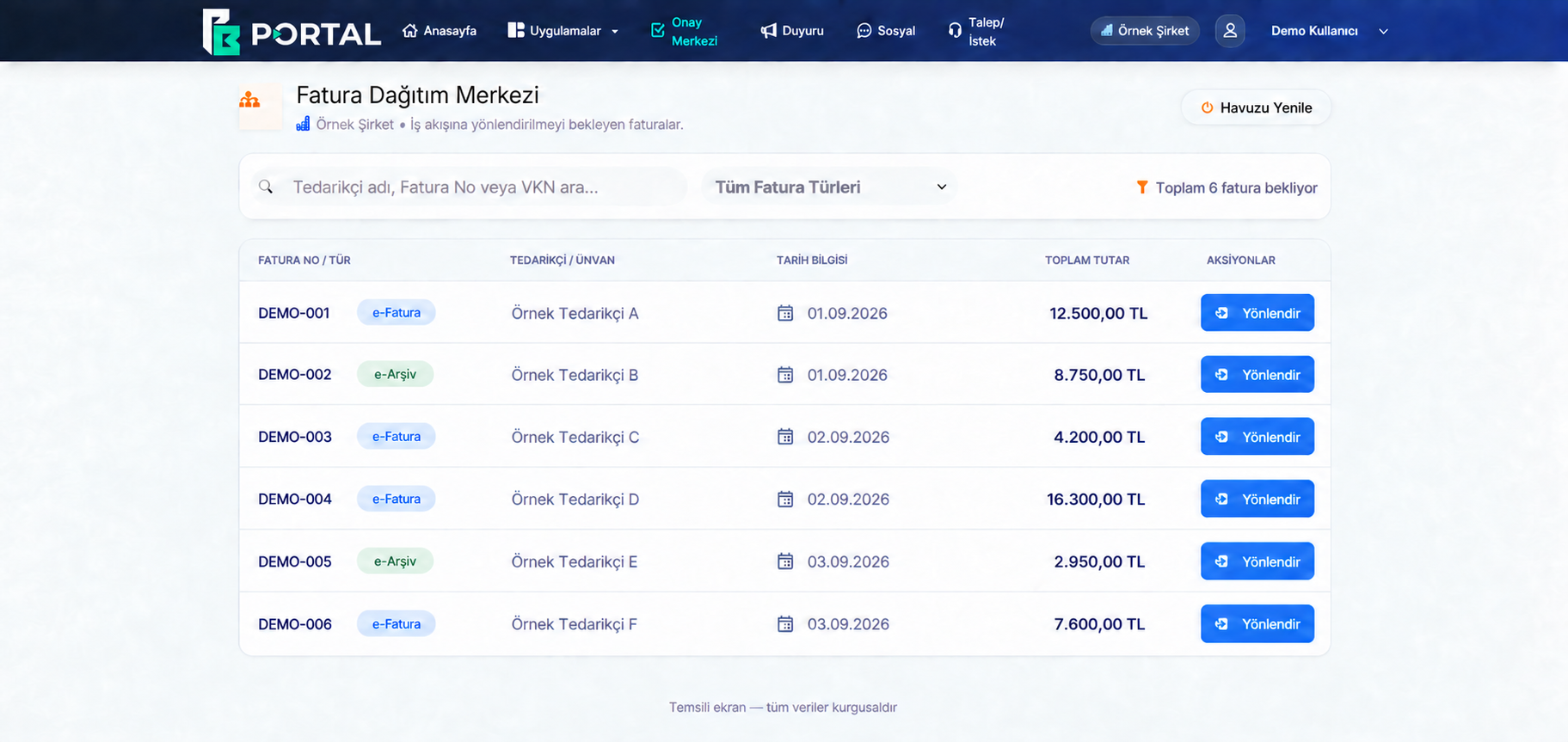
From Invoice to workflow.
Invoice Distribution Center provides a common view of invoices waiting to be routed to the workflow. You can access the record regarding the search and type filter.
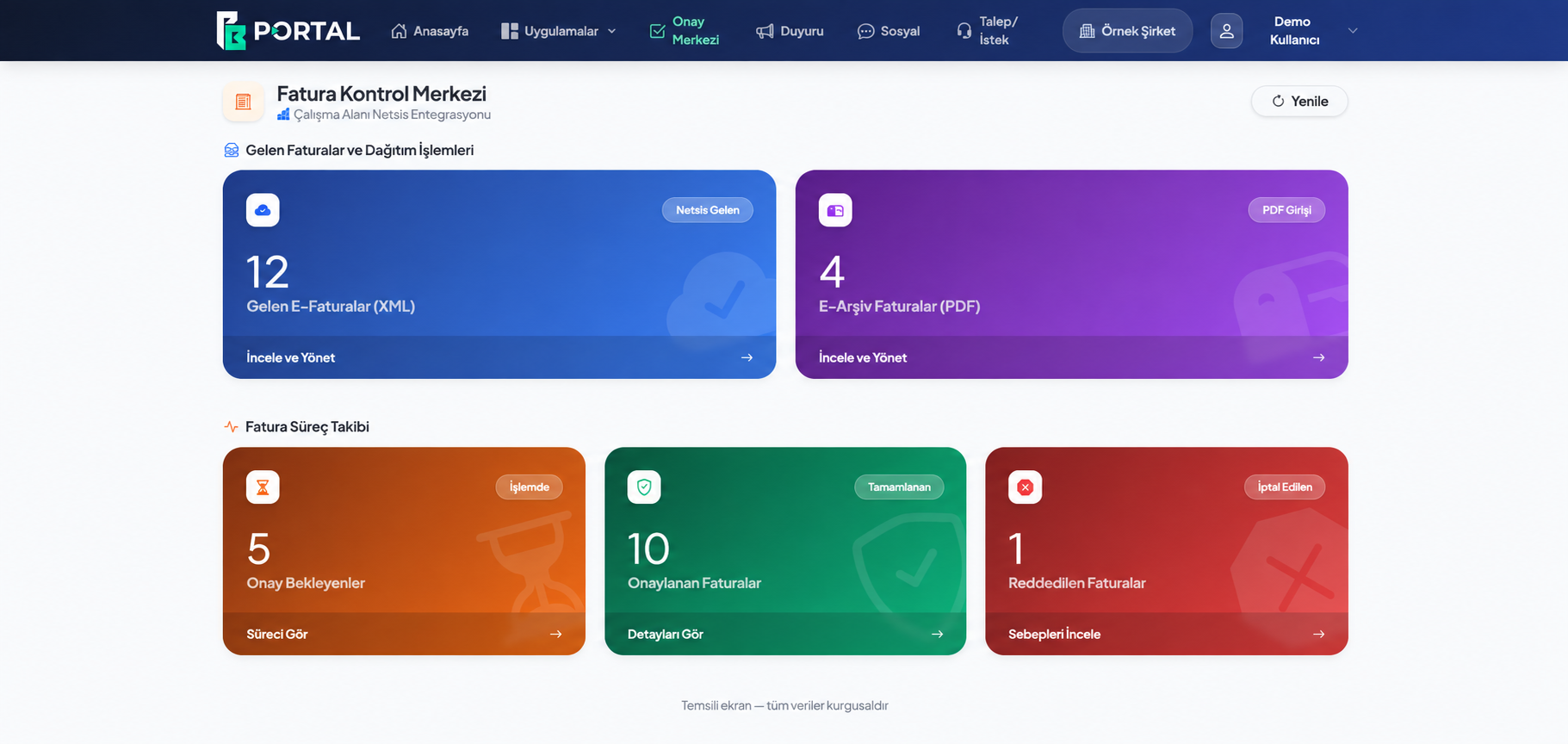
The type of invoice, Also know status .
Invoice Control Center shows incoming e-invoices and e-archive invoices under separate headings. You can proceed to the relevant transaction area by tracking the pending, approved and rejected invoices according to the process status.
Pending approvals. All in one centre.
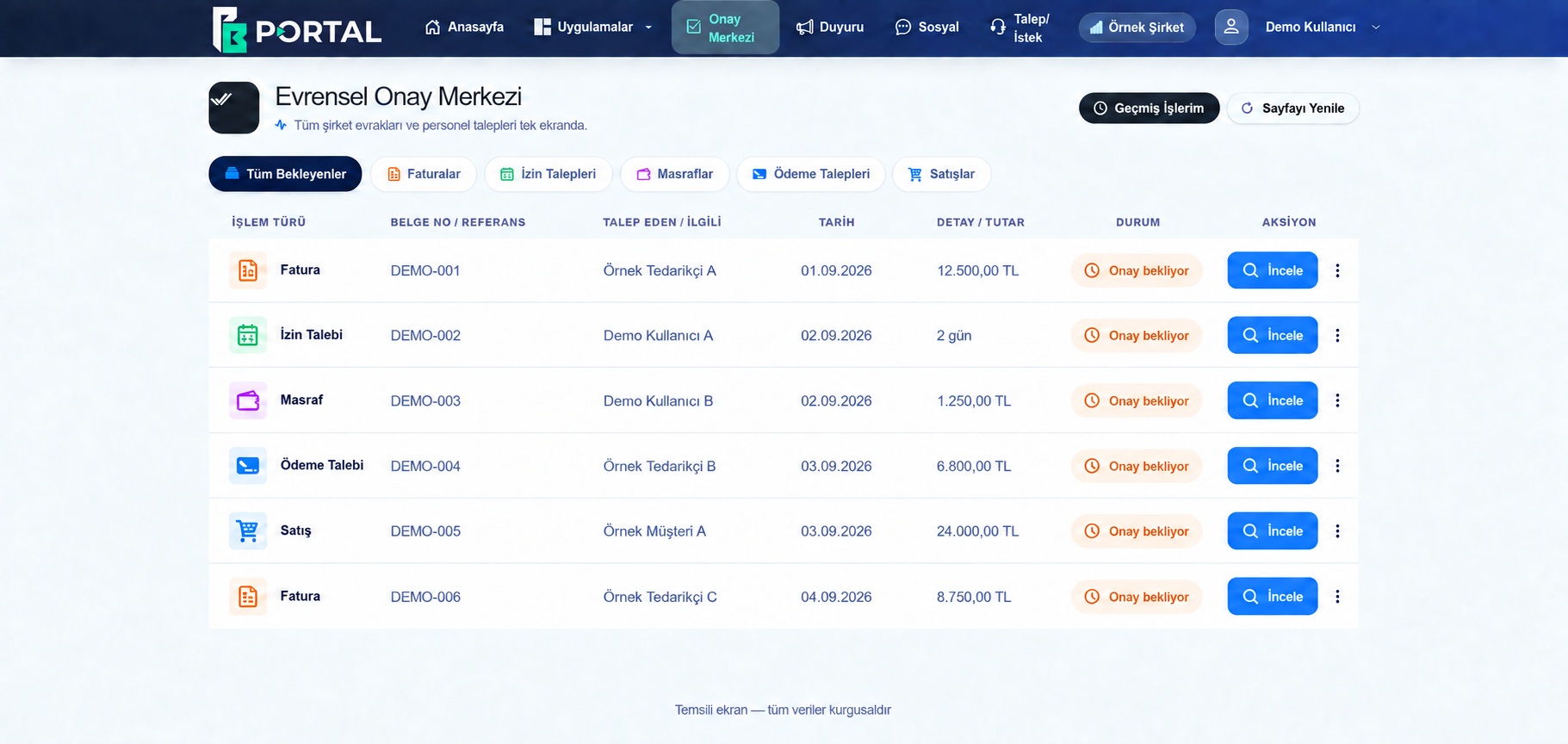
Approval Center; Separates documents and personnel requests according to transaction type. You can review pending transactions and access your past transactions from a separate view.
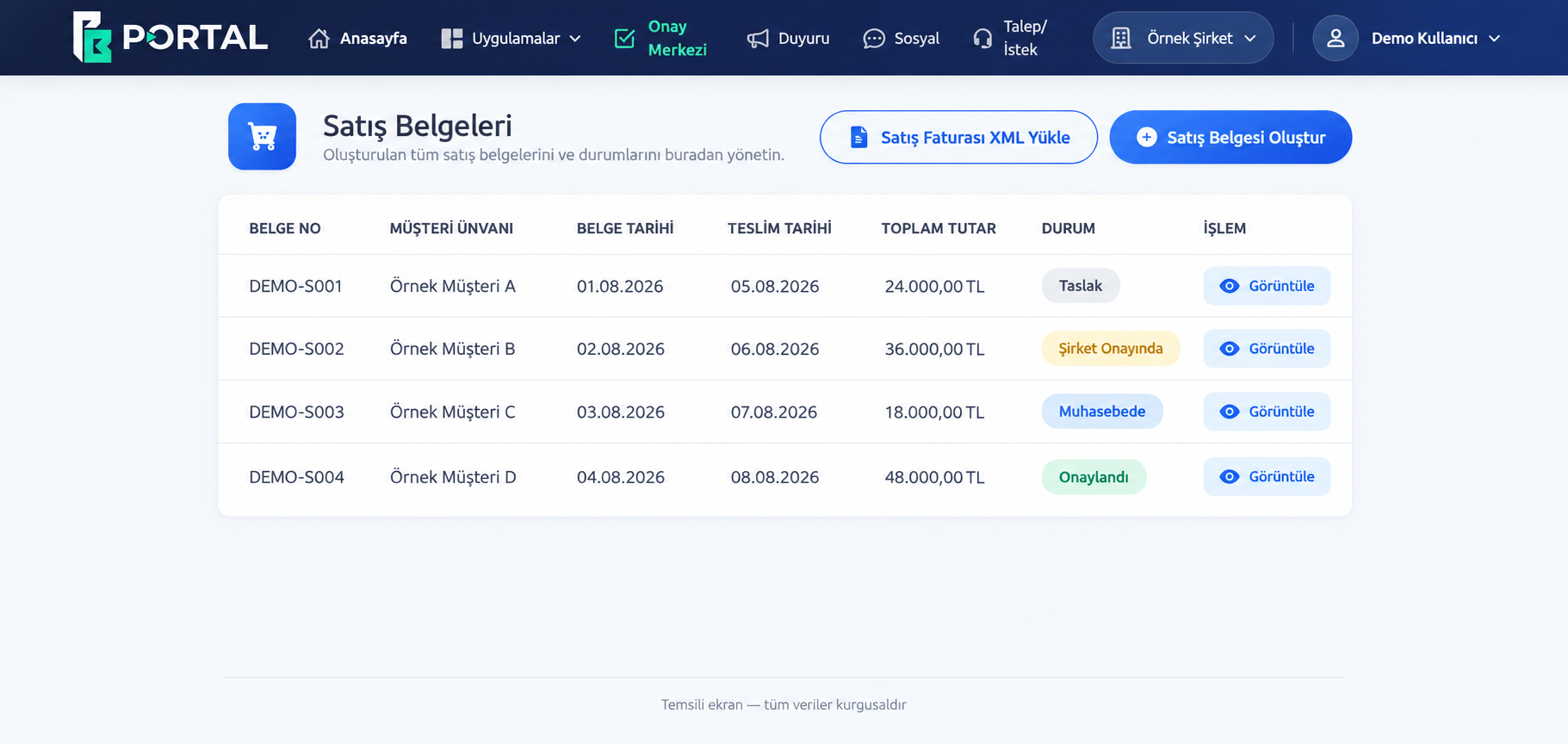
From draft invoice to approved document.
Sales invoices are first prepared as a draft and submitted to the approval of the relevant officials in the company's organizational chart. Once the internal approval is completed, it is forwarded to accounting. You can follow the status of the process through the portal and access the completed approved invoice from the same area.
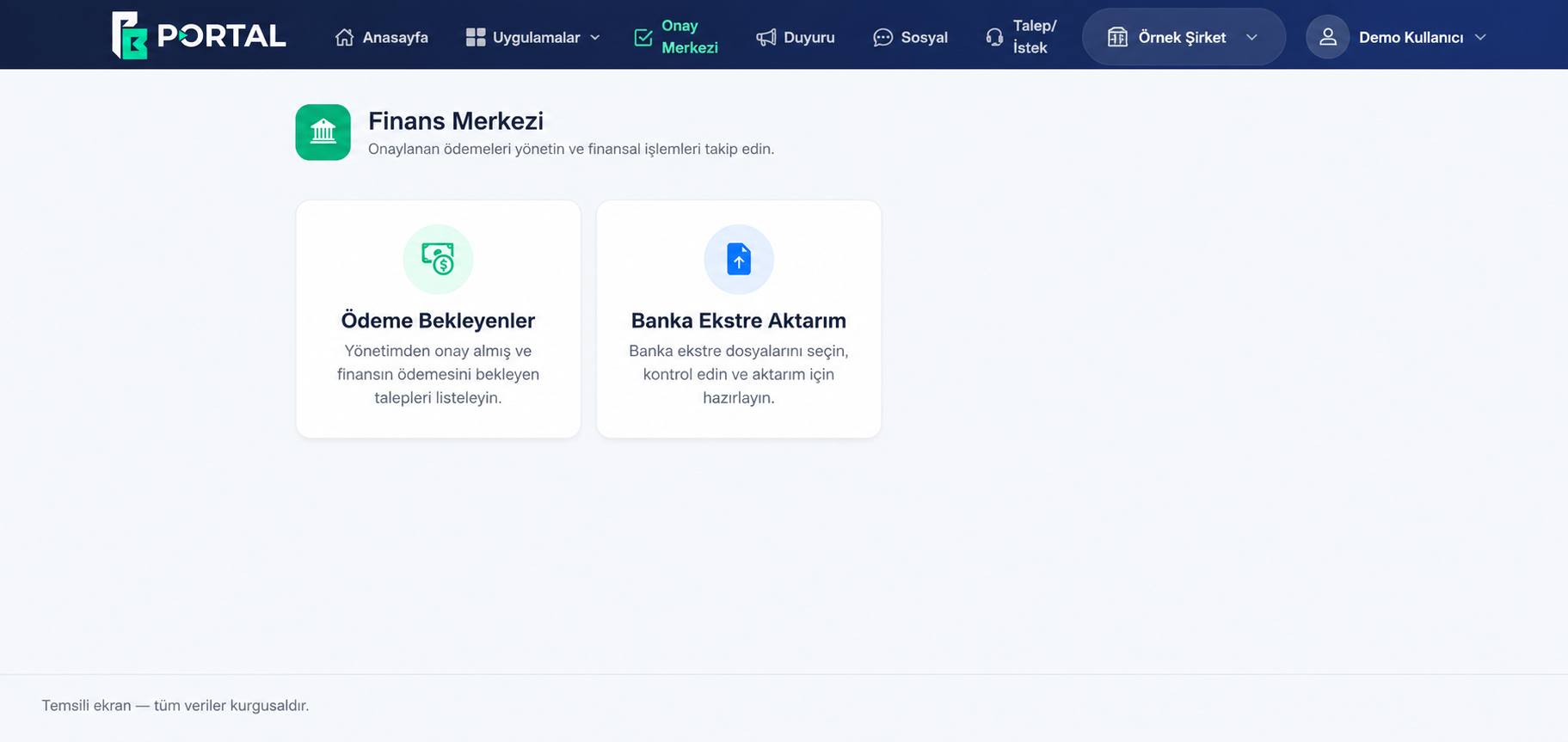
From payment request to the transaction of finance.
Payment requests created by employees, team managers and other managers are forwarded to finance and senior management within the scope of the company's approval system. Approved requests are placed on the financial management's payment list; Payment transactions are carried out by the finance team.
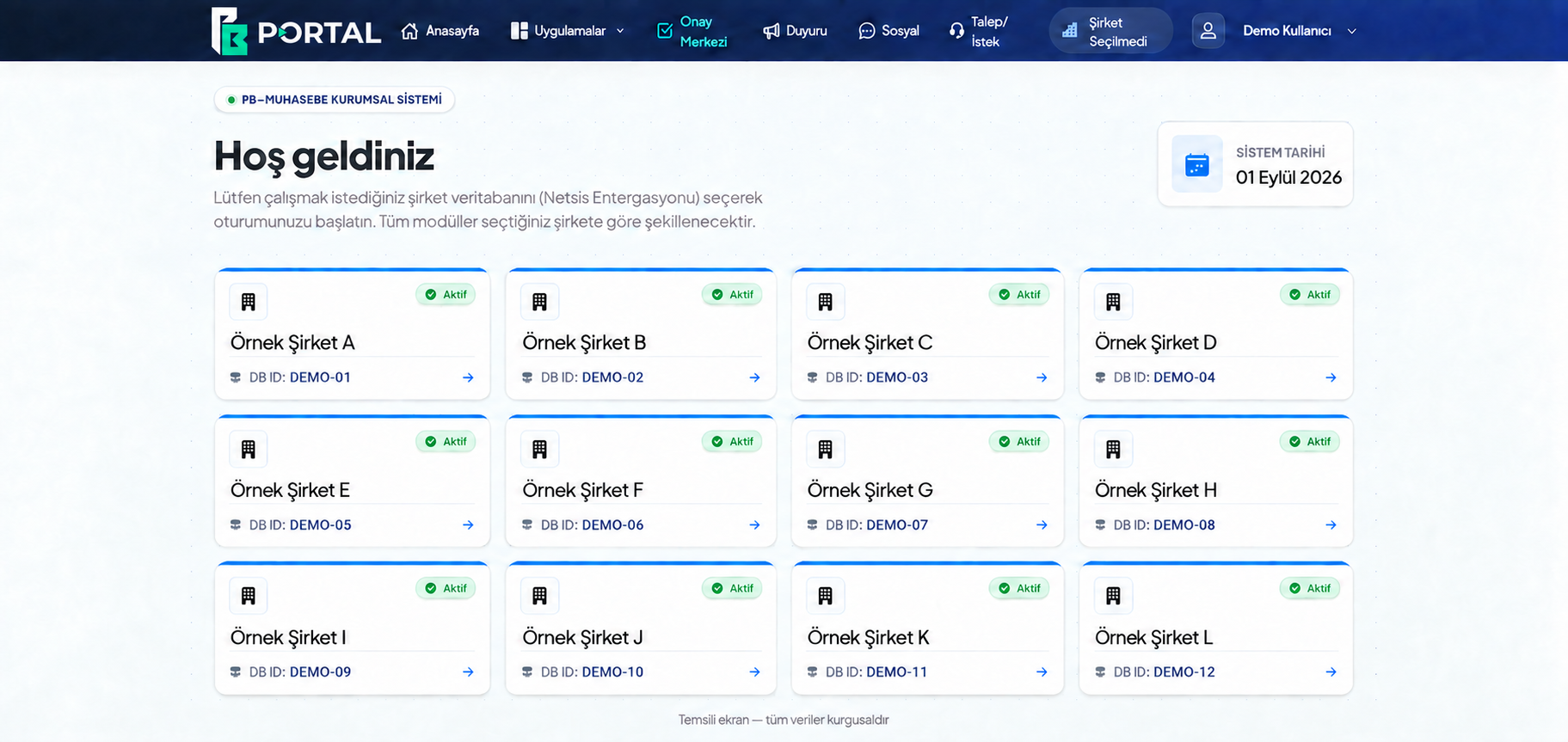
The right company. Correct workspace.
If you work with more than one company, select the company you are authorized to move to the relevant work area. The portal's modules are opened in the context of the selected company.
Leave, expense and payroll. In the same work area.
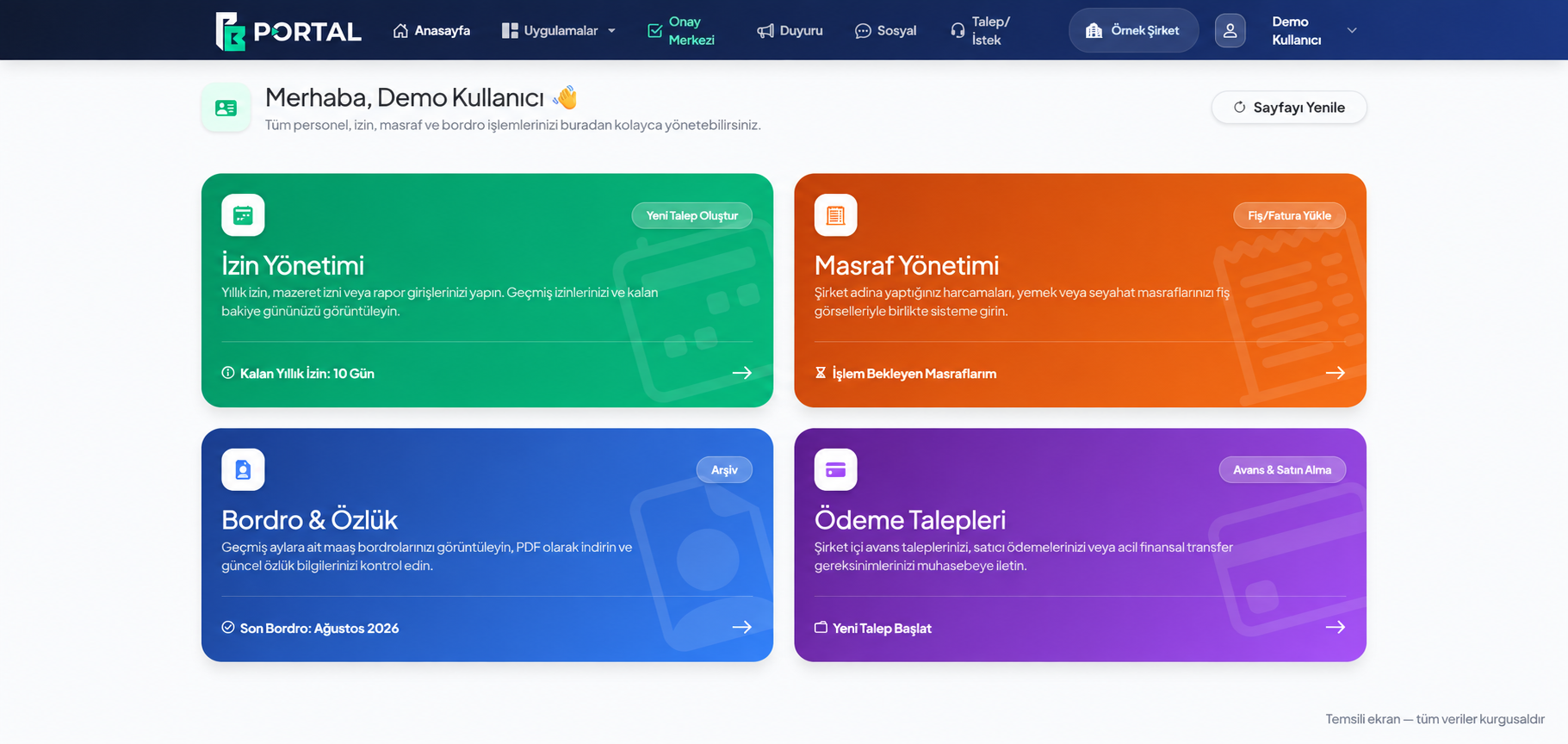
Personnel practices; It collects leave requests, expenses incurred on behalf of the company, payroll and personnel information, and payment requests in the relevant areas. You can access your own transactions with the authorizations defined in your account.
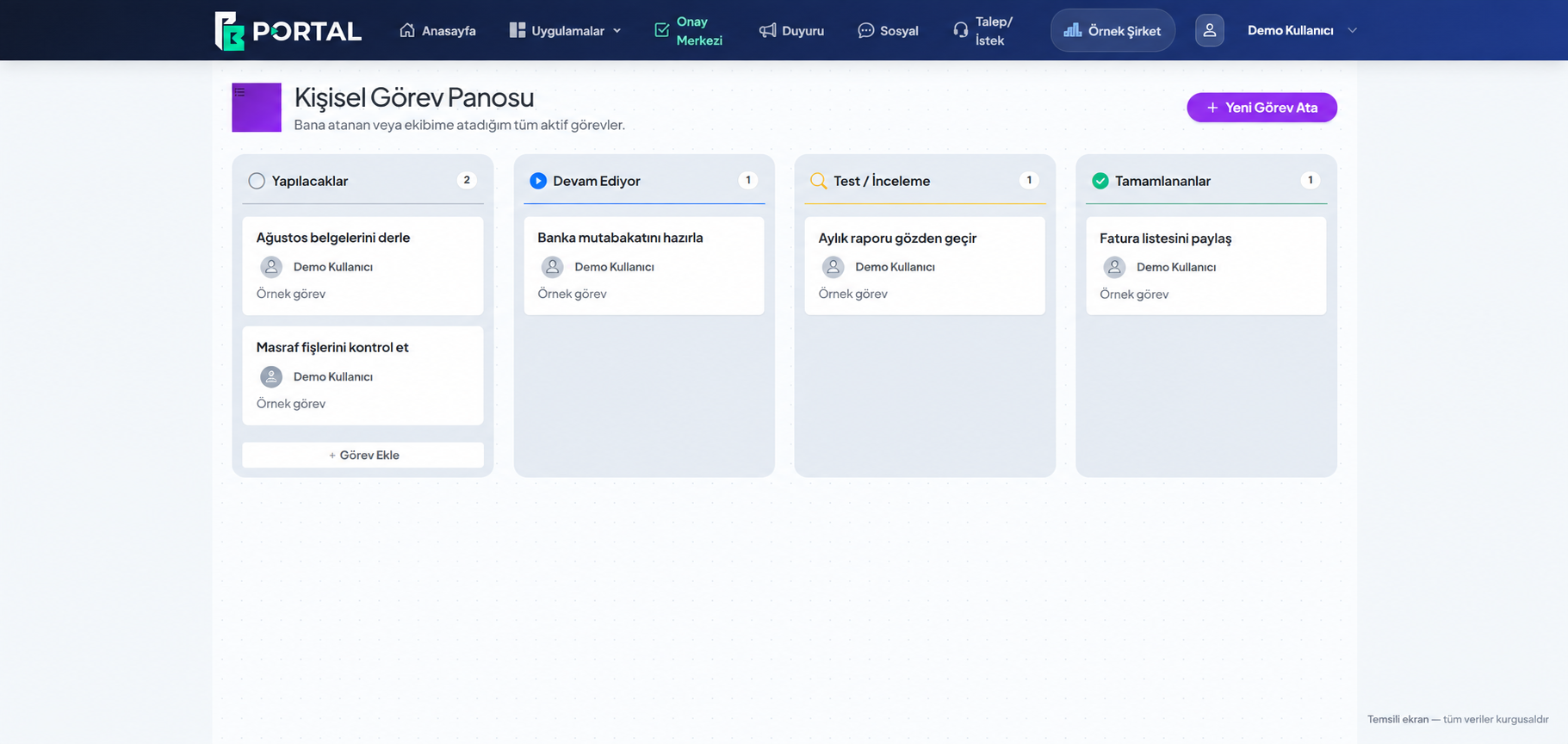
The next task is clear. Progress appears.
The Personal Task Board allows you to view tasks assigned to you or to your team based on their status. You can follow the work to be done, ongoing, under review and completed in separate columns.
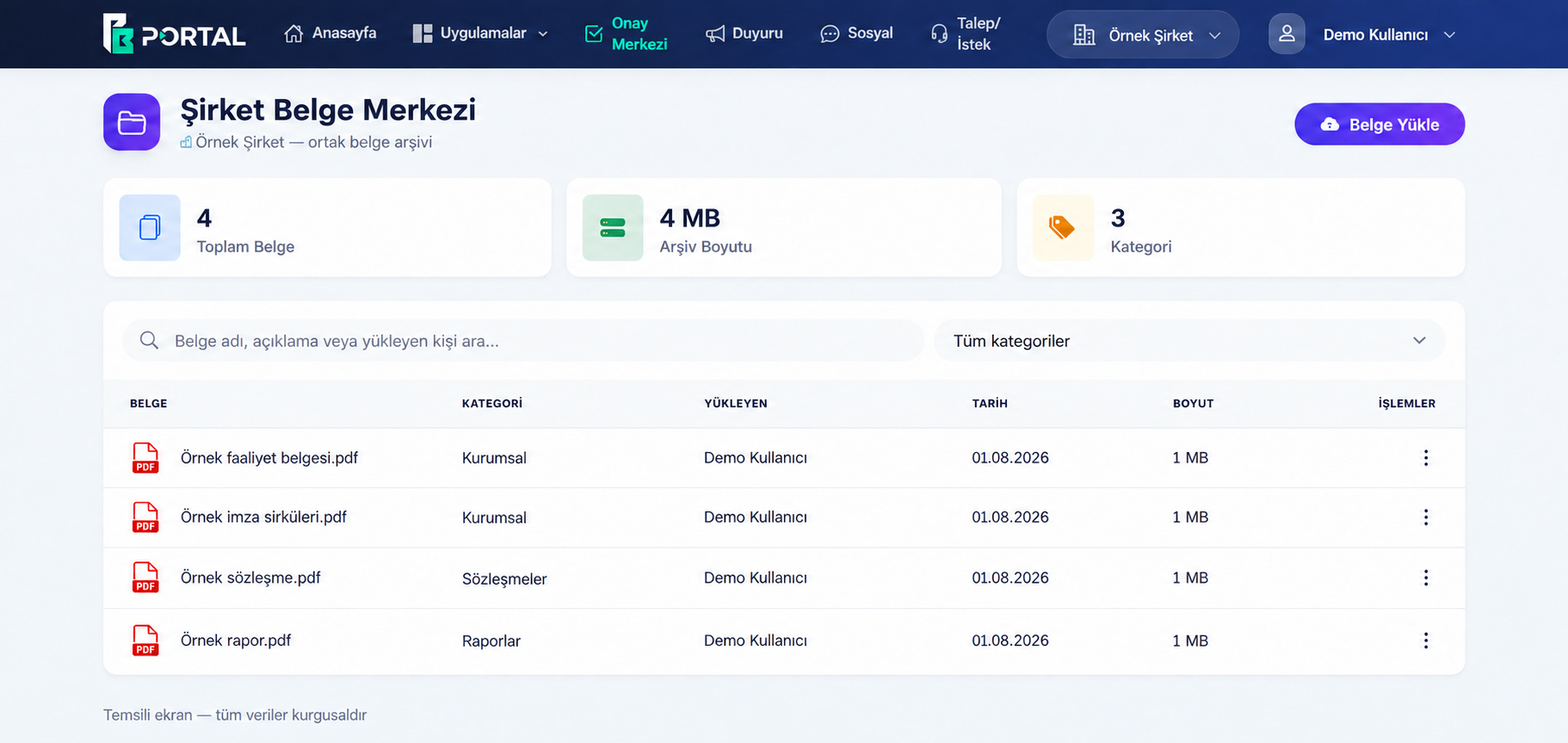
Company documents. When you need it.
Documents required for your company are organized by category in the Document Center and stored in a common archive. You can access the documents within your authority whenever you need them; You can easily find the record you are looking for with the document name, category, uploader and date information.
The images on this page are reproduced based on the portal screens. Company names, users, invoices, dates, exchange rates and amounts are completely fictional; It does not contain actual customer or transaction information. Available fields vary depending on the authorizations defined for your account.
Screens are prepared with sample data. The portal interface is shown in Turkish in the images.

Digital tracking.
Financial advisor support.
The structure of the portal, which facilitates daily tracking, complements the financial consultancy service of the PB Muhasebe team. Service scope and access privileges are determined according to your company's needs.
How do I log in with my existing account?
The Customer Portal button at the top right takes you directly to newportal.pbmuhasebe.com. Use your login information only on the portal's own screen.
What should I do if I don't have portal access?
For access support if you are an existing customer Contact info@pbmuhasebe.com . If we're not working together yet you can create a preliminary conversation.
Can I upload documents from this page?
No. This page introduces the portal; does not collect financial documents or portal passwords. Share your documents from the relevant area in your existing portal account.